Using SSH for ECE574 Homework and Projects
ssh, or "secure shell", lets you securely log into other machines,
usually running Linux, UNIX, or Mac OSX.
Logging into a System with SSH
- Linux and Mac OSX
On Linux and Mac OSX the ssh client is usually installed by default.
To log into another machine just run
"ssh username@HOSTNAME"
at a shell terminal prompt
(where username is your username on the remote machine,
and HOSTNAME is the name or IP address of the remote machine).
You will be prompted for a password, and after you
enter it you will be logged in.
Note, the machine we are using has ssh on a non-standard port, so
you will actually do something more similar to:
"ssh -p2131 username@HOSTNAME"
- Windows
Windows does not include an ssh client. A free client I have used
before is
PuTTY. Download a binary from that page and run it; it will
prompt you for a username and hostname and log you in to the system.
The program should look something like this:
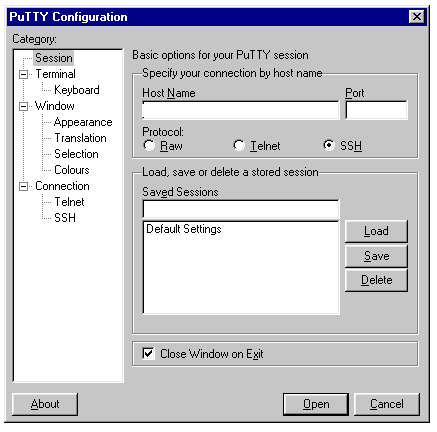
In the HostName field put the hostname given out in class
(likely weaver.eece.maine.edu).
If the instructions specify a non-default port (i.e. 2131) put
it in the Port field. Make sure SSH is selected under Protocol,
and click open.
It should then prompt you for your username and password.
Note: if you want to use a command line to connect instead of putty
you can try using the Windows Subsystem for Linux (WSL)
Copying Files over SSH
- Linux or MacOS
On a Linux or Mac OS machine you can use the "scp" command to copy
files to and from a remote machine using the ssh protocol. For
example, you can do
"scp username@HOSTNAME:project_1.tar.gz ."
which will copy the file project_1.tar.gz from your home directory
on HOSTNAME to the local directory on your current computer (after
entering your password). You can do the reverse,
"scp project5.tar.gz username@HOSTNAME:"
will copy project5.tar.gz from your local machine to your home directory
on HOSTNAME. You can specify subdirectories and the like when giving
the path to the project involved.
If you need to use a non-standard port you specify that at the
command line. Note for scp you need to use capital-p "-P" to specify
port, which is different from ssh which uses lowercase-p "-p"
"scp -P2131 username@HOSTNAME:project_1.tar.gz ."
- Windows
It is often inconvenient to do complex SCP commands. There are GUIs that
make this easier. One free scp/sftp client students often use on Windows is
WinSCP which gives a GUI
interface for transfering the files back and forth.
Be careful downloading it as the download website might have some deceptive
ads on it that try to trick you into downloading malware.
When setting up, be sure to put the hostname and port, and also be sure
to set the protocol to "SFTP" (it might default to plan unsecure ftp which
won't work in this case).